Detailed Usage and Configuration
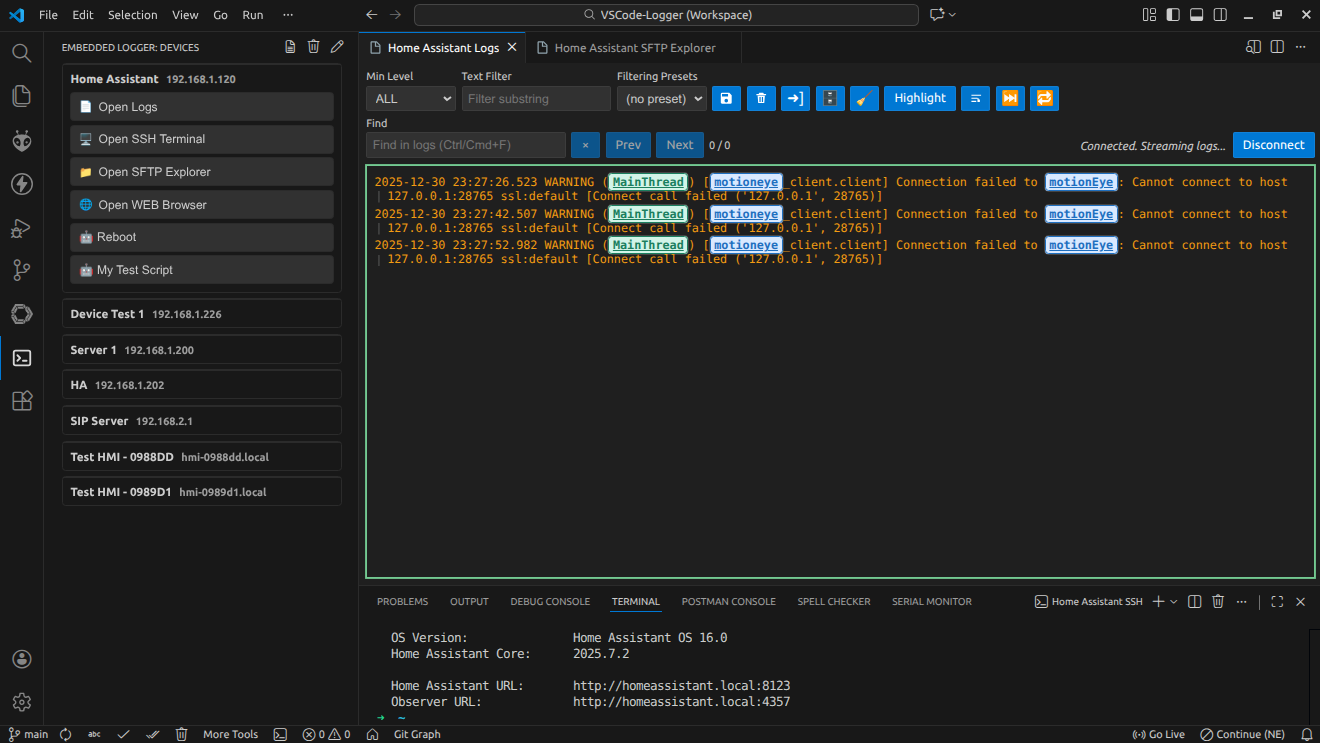
The Embedded Device Logger is a Visual Studio Code extension that can connect to your devices over SSH, tail their logs, and help you analyze the data with loglevel colorization, quick filters, custom keywords highlights and filtered export. It provides also an SFTP client, SSH terminals and one-off SSH commands to help you develop, debug and maintain your Linux-based devices.
Live logs view:
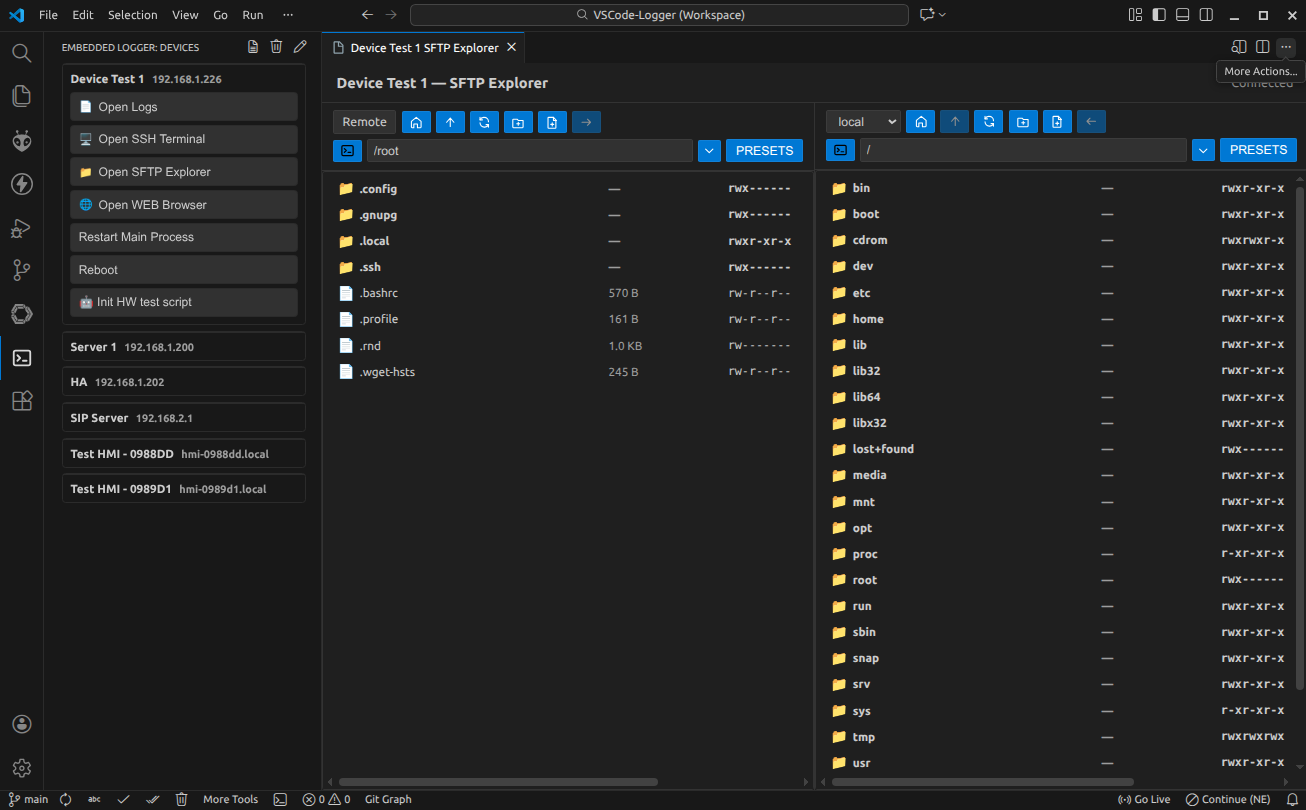
SFTP explorer and SSH terminal:
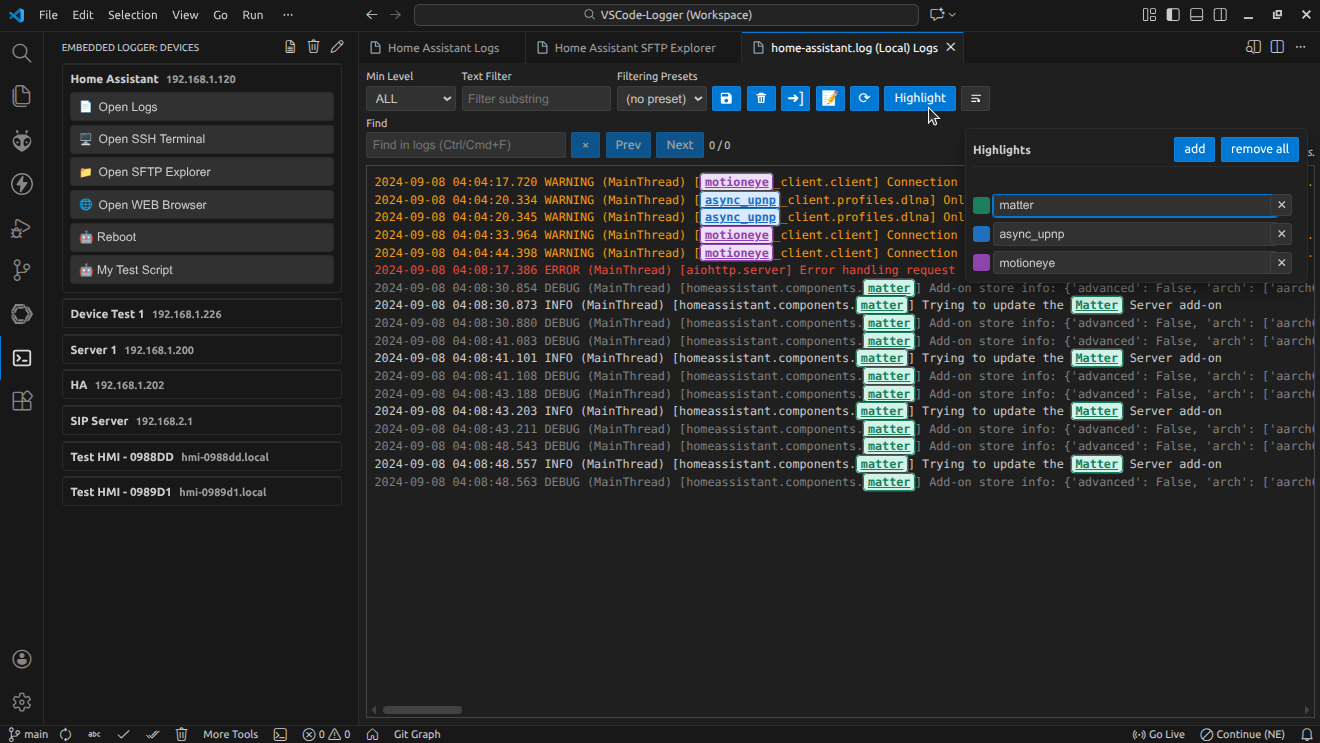
Offline logs view:
If you like the extension, please rate it. Issue reports and feature requests are welcome.
Full feature set
Devices view in the Activity Bar with device cards, per-device colors, optional groups, and quick actions.
Real-time log streaming over SSH using a configurable command. The default command is
tail -F /var/log/syslog.Log parsing, filtering, and colorization for
DEBUG,INFO,NOTICE,WARNING,ERR,CRIT,ALERT, andEMERGlevel lines, including common aliases such asWARN,ERROR,CRITICAL, andFATAL.Highlight up to 10 custom keywords with color-coded, bold, underlined text in both live and imported logs, configured per log panel.
Filter presets stored per panel target.
Search inside logs with
Ctrl/Cmd+F, next/previous navigation, and match counters.Bookmarks that can be added, labeled, edited, removed, and navigated from a log-line context menu.
Export the currently visible lines after filters are applied.
Auto-save live logs to disk while a session is running.
Open local
.logand.txtfiles in the same viewer, with edit and refresh actions.Reconnect controls including manual reconnect/disconnect and optional automatic reconnect after a connection closes.
One-off SSH commands exposed as buttons in the Devices view.
Interactive SSH terminals opened directly inside VS Code.
Dual-pane SFTP explorer with transfers, presets, quick search, rename, duplicate, delete, and permissions editing.
External and embedded web browser actions for device URLs.
Language selection and localization bundles for English, Spanish, Italian, Simplified Chinese, Traditional Chinese, French, German, Japanese, Korean, Russian, Portuguese (Brazil), Turkish, Polish, Czech, and Hungarian. By default it follows VS Code’s Configure Display Language setting and falls back to English for unsupported languages or missing localized strings.
Host-key verification with optional pinned fingerprints, automatic fingerprint capture, secondary host fallback, and optional bastion/jump-host tunnelling.
Authenticate with SSH passwords or private keys.
SSH passwords and private key passphrases are stored securely with VS Code Secret Storage.
Privacy focused. No telemetry. Everything runs locally.
Built with security in mind.
Getting started
Install the extension as explained under Installation.
Open it by clicking on the terminal icon in the Activity Bar.
Configure your devices by clicking on the pencil icon. Add them under the
embeddedLogger.devicessetting as explained in Configuration, then open the Embedded Logger view from the activity bar.
Installation
From VS Code:
Click on Extensions in the side bar and search for Embedded Device Logger (Publisher: Scallant, Author: A. Scillato).
Or from the VS Code Quick Open (Ctrl+P), paste the command:
ext install Scallant.embedded-device-logger, and press Enter.Or from the console:
code --install-extension Scallant.embedded-device-logger.
For more information visit the Embedded Device Logger extension in the VS Code Marketplace.
Configuration

You can manage configuration in two ways:
Use the Device Manager by clicking the pencil icon in the Devices view title or running Edit Devices Configuration.
Edit
settings.jsondirectly.
Device Manager
The Device Manager is the fastest way to work with the current schema because it exposes all user-editable fields in one place.
The Defaults section edits:
embeddedLogger.languageembeddedLogger.defaultPortembeddedLogger.defaultLogCommandembeddedLogger.defaultEnableSshTerminalembeddedLogger.defaultEnableSftpExplorerembeddedLogger.defaultEnableWebBrowserembeddedLogger.defaultEnableEmbeddedWebBrowserembeddedLogger.enableDevicePingembeddedLogger.devicePingIntervalSecondsembeddedLogger.defaultSshCommandsembeddedLogger.maxLinesPerTab
Extension language controls
embeddedLogger.language. VSCode default follows VS Code’s Configure Display Language setting. Supported explicit choices are English, Spanish, Italian, Simplified Chinese, Traditional Chinese, French, German, Japanese, Korean, Russian, Portuguese (Brazil), Turkish, Polish, Czech, and Hungarian. Other VS Code display languages and missing localized strings currently fall back to English.Leave Ping interval (seconds) empty to disable background ping scheduling and use only the top-level Ping Configured Devices action.
When pinging is enabled and the interval is empty or greater than
3600, the green/red ping indicator tooltip shows the last result time asHH:MM:SSfor startup, toolbar-triggered, and timer-triggered pings.The Groups table edits
embeddedLogger.groups, which controls the ordered collapsible sections shown in the Devices view.The Devices table edits
embeddedLogger.devices, including device colors, host fingerprints, secondary hosts, whether shared SSH commands should be shown, device-specific SSH commands, SFTP presets, and bastion settings. Device IDs are internal and are generated automatically when rows are added, saved, exported, or imported.Per-device feature toggles in the table are tri-state:
Defaultinherits the corresponding global default.Enabledforces the button on for that device.Disabledhides it for that device.
The header actions let you:
Remove Stored Passwords for all devices.
Import Settings from a JSON export.
Export Settings as a JSON block.
Edit in JSON to jump to
settings.json.Open a configuration example and copy it to the clipboard.
Save changes back to VS Code settings.
All names for devices and commands support emojis that can be copied from: https://emojidb.org.
settings.json example
If you prefer raw JSON, add entries like the following to your VS Code settings:
{
  "embeddedLogger.language": "vscode",
  "embeddedLogger.defaultPort": 22,
  "embeddedLogger.defaultLogCommand": "tail -F /var/log/syslog",
  "embeddedLogger.defaultEnableSshTerminal": true,
  "embeddedLogger.defaultEnableSftpExplorer": true,
  "embeddedLogger.defaultEnableWebBrowser": true,
  "embeddedLogger.defaultEnableEmbeddedWebBrowser": true,
  "embeddedLogger.enableDevicePing": true,
  "embeddedLogger.devicePingIntervalSeconds": 30,
  "embeddedLogger.defaultSshCommands": [
    {
        "name": "🔁 Reboot",
        "command": "reboot",
        "openSshPanel": false
    },
    {
        "name": "⚙️ Restart Service",
        "command": "systemctl restart my-service",
        "openSshPanel": false
    },
    {
        "name": "📈 Processes",
        "command": "top",
        "openSshPanel": true
    }
  ],
  "embeddedLogger.maxLinesPerTab": 100000,
  "embeddedLogger.groups": [
    {
      "name": "Lab"
    },
    {
      "name": "Field"
    }
  ],
  "embeddedLogger.devices": [
    {
      "group": "Lab",
      "color": "#4fc3f7",
      "name": "Device A",
      "host": "192.168.1.10",
      "hostFingerprint": "SHA256:your-primary-fingerprint",
      "secondaryHost": "192.168.1.11",
      "secondaryHostFingerprint": "SHA256:your-secondary-fingerprint",
      "port": 22,
      "username": "root",
      "privateKeyPath": "${env:HOME}/.ssh/id_ed25519",
      "logCommand": "tail -F /var/log/syslog",
      "enableSshTerminal": true,
      "enableSftpExplorer": true,
      "enableWebBrowser": true,
      "enableEmbeddedWebBrowser": false,
      "webBrowserUrl": "http://192.168.1.10",
      "showDefaultSshCommands": true,
      "sftpPresetsRemote": [
        "/var/log",
        "/opt/app"
      ],
      "sftpPresetsLocal": [
        "${env:HOME}/Downloads",
        "${env:HOME}/Projects"
      ],
      "sshCommands": [
        {
          "name": "🔁 Restart IOT",
          "command": "systemctl restart fw-iot",
          "openSshPanel": false
        }
      ],
      "bastion": {
        "host": "bastion.example.com",
        "hostFingerprint": "SHA256:bastion-fingerprint",
        "port": 22,
        "username": "jump-user",
        "privateKeyPath": "${env:HOME}/.ssh/id_ed25519"
      }
    }
  ]
}
Required and optional device fields
Every device must provide:
namehostusername
Common optional fields include:
idas an internal stable identifier. The Device Manager generates it automatically and preserves existing unique IDs from older exports. If you edit raw JSON, you may omit it and the extension will generate one.groupto place the device in a configured group.colorto tint the device indicator and log tab icon.portto overrideembeddedLogger.defaultPort.logCommandto overrideembeddedLogger.defaultLogCommand.hostFingerprintto pin the primary device host key.secondaryHostandsecondaryHostFingerprintfor automatic fallback to a second endpoint.privateKeyPathfor key-based authentication.passwordandprivateKeyPassphraseas migration fields only.enableSshTerminal,enableSftpExplorer,enableWebBrowser, andenableEmbeddedWebBrowserto override the defaults for one device.webBrowserUrlto override the URL opened by browser actions.showDefaultSshCommandsto prependembeddedLogger.defaultSshCommandsbefore the device’s ownsshCommands. It defaults totrue.sshCommandsto define device-specific SSH buttons. SetopenSshPanel: trueon a command to launch it in a persistent SSH terminal instead of a one-off notification.sftpPresetsRemoteandsftpPresetsLocalto persist SFTP favorite paths with the device configuration.bastionto reach the device through a jump host.
With showDefaultSshCommands: true, the Devices view shows embeddedLogger.defaultSshCommands first and then the device’s own sshCommands. Set it to false to show only device-specific commands. A device with no sshCommands and showDefaultSshCommands: true shows only the shared commands.
Authentication and secrets
If no password is stored yet, the extension prompts for it when connecting and saves it locally and securely. When using an encrypted private key, the passphrase is requested once and stored securely in VS Code Secret Storage.
If
privateKeyPathis set, the extension uses the private key and prompts for a passphrase when needed.Otherwise, it prompts for a password when needed.
Device and bastion passwords/passphrases are stored in VS Code Secret Storage.
passwordandprivateKeyPassphrasefields are migrated into Secret Storage on activation when possible.Stored credential lookup keys are versioned and derived with a memory hard key derivation function. Older stored credentials that used the previous scoped key format are upgraded automatically the next time the device or bastion credential is used.
Use Embedded Logger: Remove Stored Passwords or the Device Manager button to clear stored device and bastion credentials.
Private key paths can include
~and${env:VAR}expansions.
Host-key verification, secondary hosts, and bastions
Primary host fingerprint
Set
hostFingerprintto pin the device SSH host key.If no fingerprint is configured, the extension accepts the first successful host key, saves the fingerprint back into configuration, and uses it on later connections.
If the host key later changes, the panel reports the mismatch and asks whether to update the stored fingerprint before retrying.
Secondary host fallback
Set
secondaryHostto provide a fallback address for the same device.Optionally set
secondaryHostFingerprintto pin that fallback endpoint as well.When the primary connection fails, the extension rotates to the secondary endpoint and retries.
Bastion host
Use the
bastionblock when the device is only reachable through a jump host.Supported bastion fields are
host,username, optionalport, optionalhostFingerprint,password,privateKeyPath, andprivateKeyPassphrase.Bastion host-key fingerprints and secrets are tracked separately from the target device.
Bastion tunnelling is used consistently by live log streaming, SSH terminals, one-off SSH commands, and the SFTP explorer.
Using the Devices view
The Devices view shows device cards, optionally grouped under the ordered names defined in embeddedLogger.groups.
Each device always exposes Open Logs. Depending on configuration, it can also show:
Open SSH Terminal
Open SFTP Explorer
Open External Web Browser
Open Embedded Web Browser
Shared SSH command buttons first when
showDefaultSshCommandsis enabled, followed by device-specificsshCommands
When embeddedLogger.enableDevicePing is enabled, the view title shows Ping Configured Devices. The dot next to each device name reflects the most recent ping result. If the ping interval is blank or greater than 3600, hovering a green or red dot after the startup ping, a toolbar-triggered ping, or a timer-triggered ping shows the result plus the completion time as HH:MM:SS.
Commands with openSshPanel: true reuse the SSH terminal flow: the extension opens a terminal, runs the command immediately, and keeps the session open for follow-up input.
Right-clicking a device title or host opens a small context menu with:
Copy URL
Copy Name
The command palette also exposes:
Open Local Log File
Edit Devices Configuration
Remove Stored Passwords
Open SFTP Explorer
Open External Web Browser
Open Embedded Web Browser
Using the log panel
Remote devices and imported files share the same main viewer, but live-only controls are hidden for imported files.
Core controls
Min Level filters by parsed log severity.
Text Filter matches a substring anywhere in the line.
Filter preset dropdown shows saved presets for the current panel target.
Save preset stores the current min-level and text filter using the current text-filter text as the preset name.
Delete preset removes the selected preset and clears the text filter.
Export logs writes only the currently visible filtered lines.
Highlight opens the keyword-highlighting popover.
Word wrap toggles wrapped rendering.
Find searches within the current filtered view.
Live log controls
For live SSH sessions, the panel also provides:
Auto-scroll toggle.
Auto-reconnect toggle.
Start/Stop auto-save to continuously append raw incoming log lines to a chosen file.
Clear logs to clear the in-memory panel while leaving the remote command running.
A status-area action button that becomes Disconnect while connected and Reconnect after a disconnect.
When a live session closes:
The panel appends a visible marker line such as
--- SSH session closed on 2026-03-29 at 13:45:22.If auto-reconnect is enabled, the panel shows a five-second countdown and retries automatically.
If the host key mismatches, auto-reconnect is disabled until the fingerprint issue is resolved.
Imported log files
Logs opened through Open Local Log File use the same viewer but hide live-only controls.
Imported-file panels add:
Edit log file to open the source file in a normal editor tab.
Refresh log file to reread the file from disk and replace the current panel contents.
Search, highlights, and bookmarks
Search
Press
Ctrl/Cmd+Fto focus the search box.Press
Enterfor the next match andShift+Enterfor the previous match.Click a matched line to make that result the active search result.
Highlights
Each panel can store up to 10 highlight keywords.
Highlights are saved per panel target.
Search hits are highlighted separately from user-defined highlight keywords.
Bookmarks
Right-click any log line to open the bookmark context menu.
You can add a bookmark before that line, edit the bookmark label, remove one bookmark, remove all bookmarks, or jump to the next/previous bookmark.
If text is selected when you right-click, the context menu also includes Copy.
Bookmark lines remain visible even when other filters would normally hide them.
Status area behavior
The status area shows connection state and a secondary status line for auto-save or default tail -F /var/log/syslog notices.
Example informational message:
tail: '/var/log/syslog' has appeared; following new fileThis is expected when
tail -Ffollows a rotated or recreated file.Right-click the status area in a live log panel to clear transient status text and restore the default connected message.
SFTP explorer
When enableSftpExplorer is enabled for a device, the card shows Open SFTP Explorer.
The SFTP explorer provides:
A dual-pane layout with the remote device on the left and a local pane on the right by default.
Optional remote mode on the right side for remote-to-remote transfers.
Saved path presets for both panes, persisted to
sftpPresetsRemoteandsftpPresetsLocal.Rename, duplicate, delete, transfer, permissions editing and view and edit content actions from the UI.
Owner and group name resolution for permission changes where available.
Quick search by typing, with
Entercycling matches.Keyboard shortcuts including:
Arrow Up/Downto move selectionEnterto open a folder or view file content when quick search is not activeBackspaceto go to the parent directoryDeleteto removeF2to renameCtrl/Cmd+Dto duplicateCtrl/Cmd+Pto change permissions
If the remote connection drops, the panel stays open, greys out, shows a reconnection countdown, and retries automatically without discarding the active remote paths.
Browser actions
Two browser-related actions are available per device:
enableWebBrowsershows Open External Web Browser and opens the target in your system browser.enableEmbeddedWebBrowsershows Open Embedded Web Browser and opens the target in VS Code.
Behavior is the same for both actions:
If
webBrowserUrlis set, that URL is used.Otherwise, the extension opens
http://<host>.Only
http://andhttps://URLs are accepted.
Notes
Colorization of lines is performed based on the log level (DEBUG, INFO, ERROR, etc). If these keys are not present in the log, no colorization is applied.
Filtering presets are stored per panel target in the workspace state using the key
embeddedLogger.presets.<targetId>. For remote devices,targetIdis the device ID.Open the filter preset dropdown (caret button next to Text Filter) to pick an existing preset or clear the current selection. The dropdown supports keyboard navigation (ArrowDown to open; Escape to close).
Saving a preset now uses the current text filter value as the preset name and stores the active min-level and filter text together. The Save preset button enables when the text filter is non-empty and differs from the active preset.
Changing the text filter clears the active preset selection so you do not overwrite an existing preset unintentionally.
Deleting a preset clears the text filter and list selection.
Exports only include log lines currently visible after applying filters.
When an SSH session closes, the log view appends
--- SSH session closed on <timestamp>and offers a Reconnect button next to the status text to restart streaming.Use the Highlight button in each log panel to manage up to ten highlight rows, each with its own colour and editable keyword that updates that panel instantly.
Use the Open Local Log File button in the Embedded Logger devices view (or run the command with the same name) to select a
.logor.txtfile from your machine. The chosen file is loaded into the log viewer so you can reuse filtering, presets, export filtered logs, and highlights just like a live connection.Status text also shows messages from the log command used in the configuration like
tail -F /var/log/syslog. Messages such astail: '/var/log/syslog' has appeared; following new filemay appear when the log file is rotated or recreated. The-Fflag tellstailto keep watching for the file to reappear, so the message is informational and indicates that log streaming will continue with the new file. If you prefer a different log source, update thelogCommandin your device configuration.The Embedded Device Logger extension supports sharing the VS Code Activity Bar with other extensions. To merge an extension into the Activity Bar, select its icon from the Side Bar, then drag and drop it into your desired position within the Activity Bar.
embeddedLogger.maxLinesPerTabcontrols how many entries are kept in memory for each log panel. The default is100000.In live panels, once the limit is reached, older entries are replaced with newer ones and a notice is shown.
In imported-file panels, only the newest
maxLinesPerTablines are displayed.Auto-save is not limited by
embeddedLogger.maxLinesPerTab; it writes all incoming lines until stopped.SSH command names can include emoji if you want more visual buttons in the Devices view. Emojis that can be copied from: https://emojidb.org.
The extension works with devices reachable through a VPN as long as the host machine already has network access.